Overview
Welcome to Portfolio Pro – a collection of five unique, modern, and fully responsive HTML5 portfolio website templates designed for creative professionals. Each demo version features a distinct aesthetic, light and dark mode toggle, and a user-friendly control panel for easy content management.
Modern & Responsive
All five demos are built with modern HTML5, CSS3, and JavaScript, ensuring perfect display on all devices and screen sizes.
Light & Dark Mode
Each demo includes a seamless light/dark mode toggle with smooth transitions and persistent user preference.
User-Friendly Control Panel
Update your content easily with the intuitive control panel – no coding skills required.
Unique Designs
Five distinct design aesthetics to choose from, each with its own creative layout and visual style.
Important Note
Portfolio Pro is designed to work without a database or server-side scripting, making it perfect for direct upload to cPanel or any static web hosting service.
Demo Versions
Portfolio Pro includes five unique demo versions, each with its own distinct design aesthetic and creative layout. Choose the one that best represents your personal brand or customize any of them to match your vision.
Demo 1: Neo-Minimalist

A clean, elegant design with a focus on typography and whitespace. Perfect for photographers, designers, and minimalist creatives who want their work to take center stage.
Key Features:
- Minimal aesthetic with elegant typography
- Subtle animations and transitions
- Spacious layout with focus on content
- Monochromatic color scheme with accent colors
Demo 2: Bold & Graphic
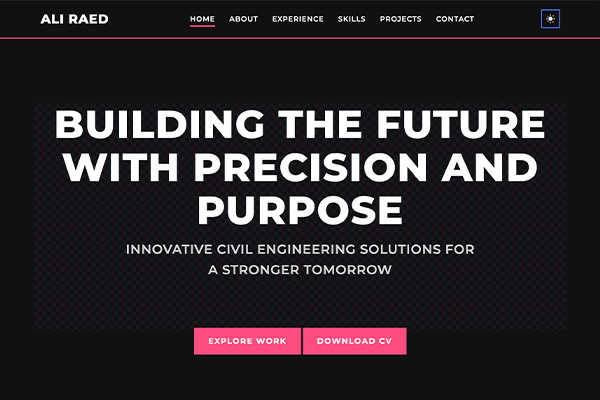
A vibrant, high-contrast design with bold typography and graphic elements. Ideal for graphic designers, illustrators, and creatives with a bold personal brand.
Key Features:
- Bold typography and high-contrast design
- Vibrant color scheme with dynamic elements
- Graphic accents and decorative elements
- Grid-based project gallery with category filtering
Demo 3: Immersive Interactive
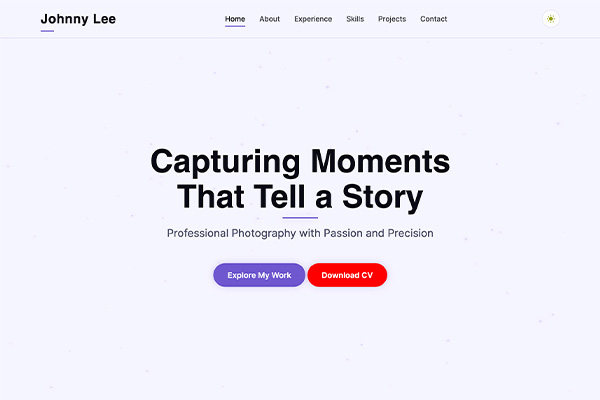
An immersive experience with interactive elements and particle backgrounds. Perfect for web developers, interactive designers, and digital artists.
Key Features:
- Interactive particle background
- Scroll-triggered animations and effects
- Immersive full-screen sections
- Interactive project showcase with hover effects
Demo 4: Playful Creative

A playful and creative design with unique shapes, illustrations, and animations. Ideal for creative directors, illustrators, and professionals with a playful brand identity.
Key Features:
- Playful illustrations and decorative elements
- Unique layout with creative shapes
- Fun animations and microinteractions
- Colorful accents and personality-filled design
Demo 5: Futuristic Minimal

A futuristic design with a minimal aesthetic, featuring subtle grid backgrounds and glowing accents. Perfect for UI/UX designers, tech professionals, and forward-thinking creatives.
Key Features:
- Futuristic grid background with glowing elements
- Clean, minimal interface with modern typography
- Subtle hover effects and transitions
- Sleek project cards with category filtering
Installation
Portfolio Pro is designed to be easy to install and set up, with no database or server-side scripting required. Follow these steps to get your portfolio website up and running quickly.
Requirements
Portfolio Pro has minimal requirements and will work on virtually any web hosting service:
- Any web hosting service that supports HTML, CSS, and JavaScript
- No database required
- No PHP or server-side scripting required
- Modern web browser for viewing (Chrome, Firefox, Safari, Edge)
Upload Process
Choose Your Demo
Decide which of the five demo versions you want to use for your portfolio website.
Prepare Your Files
Extract the downloaded ZIP file and locate your chosen demo folder (demo1, demo2, demo3, demo4, or demo5).
Upload to Your Web Server
Using FTP or your hosting control panel's file manager, upload the entire contents of your chosen demo folder to your web server.
// Example directory structure after upload
public_html/
├── index.html
├── data.json
├── assets/
│   ├── css/
│   ├── js/
│   ├── images/
│   └── icons/
└── control_panel/Verify Installation
Visit your website URL to ensure everything is working correctly. You should see the demo with placeholder content.
Access the Control Panel
Navigate to your-website.com/control_panel/control_panel.html to access the control panel and start customizing your content.
Default Password
The default password for the control panel is: 123456
Folder Structure
Understanding the folder structure will help you navigate and customize your portfolio website:
demo1/ (or demo2/, demo3/, etc.)
├── index.html              # Main HTML file
├── data.json               # Content data file
├── assets/
│   ├── css/                # CSS stylesheets
│   │   ├── main.css        # Main stylesheet
│   │   └── theme-toggle.css # Light/dark mode styles
│   ├── js/                 # JavaScript files
│   │   ├── main.js         # Main functionality
│   │   └── animations.js   # Animation scripts
│   ├── images/             # Image files
│   └── icons/              # Icon files
└── control_panel/          # Control panel files
    ├── control_panel.html  # Control panel interface
    └── assets/             # Control panel assets
Control Panel
The control panel is a user-friendly interface that allows you to update your portfolio content without editing code. Each demo includes its own control panel with the same functionality but styled to match the demo's aesthetic.
Accessing the Control Panel
Navigate to the Control Panel URL
Access the control panel by navigating to your-website.com/control_panel/control_panel.html in your web browser.

Enter Your Password
Enter your control panel password. The default password is 123456.
Access the Dashboard
After successful login, you'll be taken to the control panel dashboard where you can manage all aspects of your portfolio.

General Settings
The General Settings section allows you to update basic information about your portfolio:

| Setting | Description |
|---|---|
| Portfolio Name | The name displayed in the header/logo area |
| Hero Title | The main headline on your homepage |
| Hero Subtitle | The secondary text below your main headline |
| Footer Name | The name displayed in the copyright section of the footer |
Content Management
The control panel allows you to manage all content sections of your portfolio:
About Section

Update your profile image and bio text. For the bio, you can use \n to create new paragraphs.
Experience Section
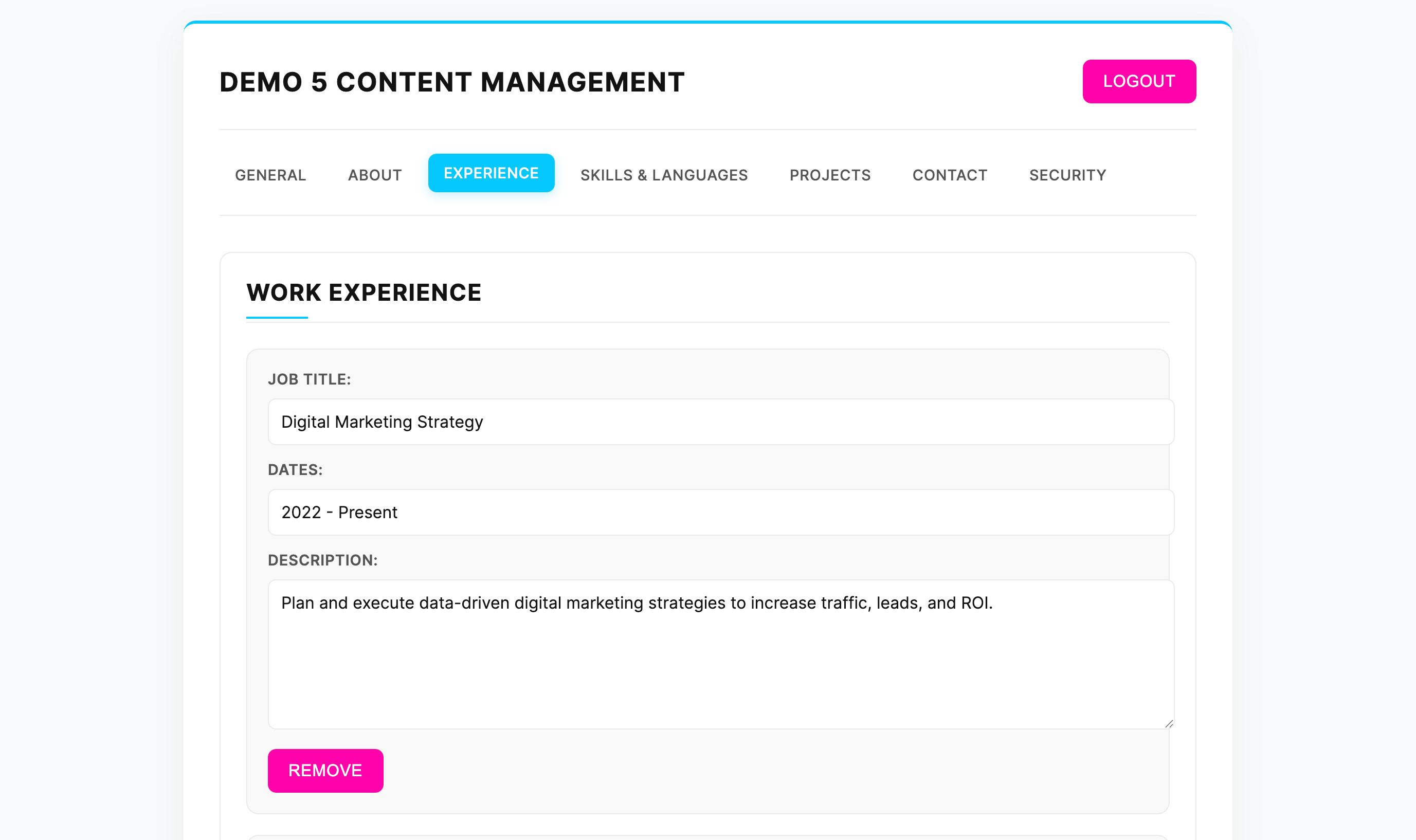
Add, edit, or remove work experience entries. Each entry includes a job title, dates, and description.
Skills & Languages

Update your technical skills and languages spoken using comma-separated lists.
Contact Information

Update your contact information and social media links.
Managing Projects
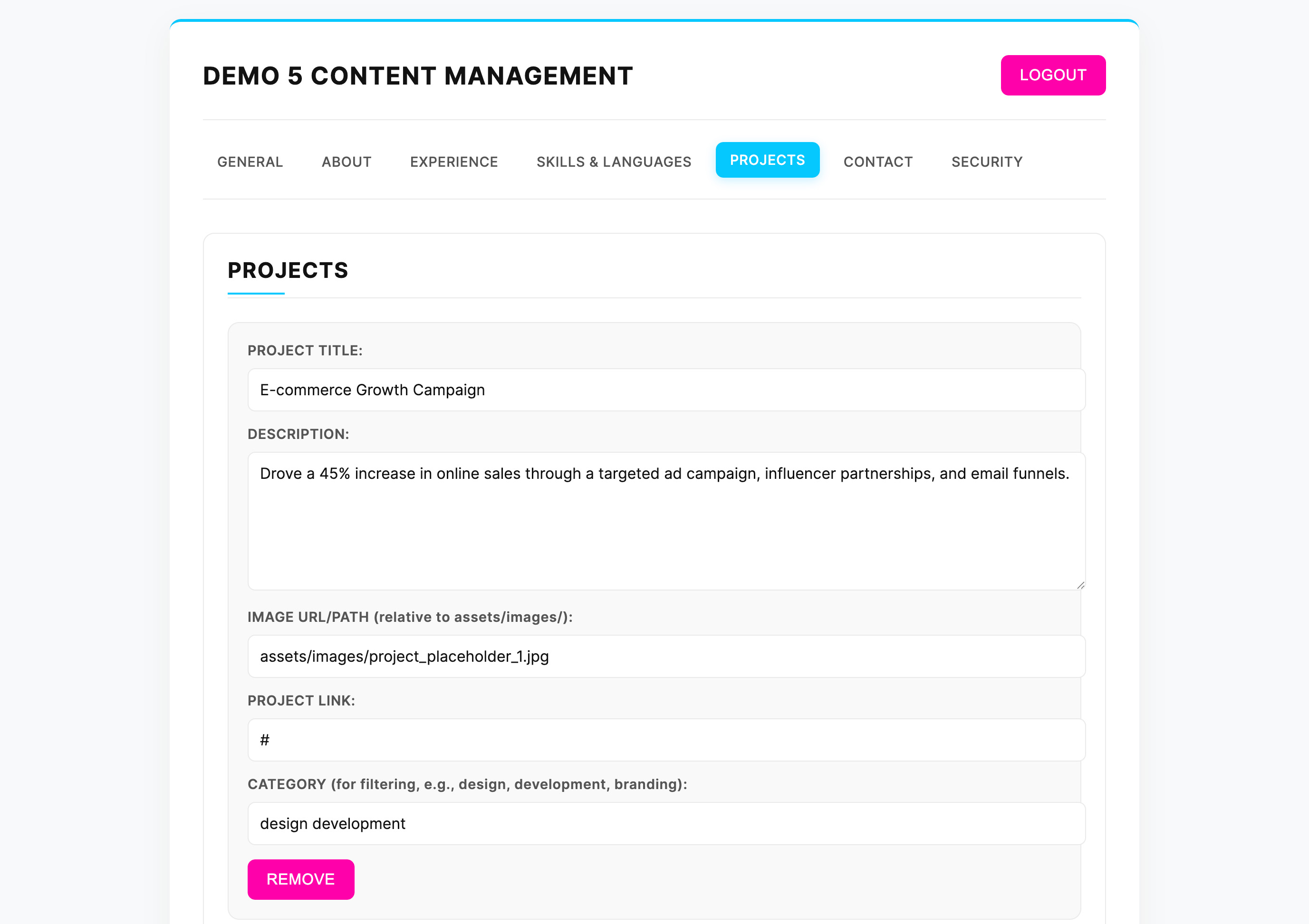
The Projects section allows you to showcase your work:
Adding a New Project
Click the "Add Project" button to create a new project entry.
Project Details
Fill in the project title, description, image path, link, and category.
Project Images
Upload your project images to the assets/images/ folder first, then reference them in the image path field.
Categories for Filtering
The category field is used for the filterable gallery. You can use multiple categories separated by spaces (e.g., "design development").
Removing Projects
Click the "Remove" button on any project entry to delete it.
Security Settings
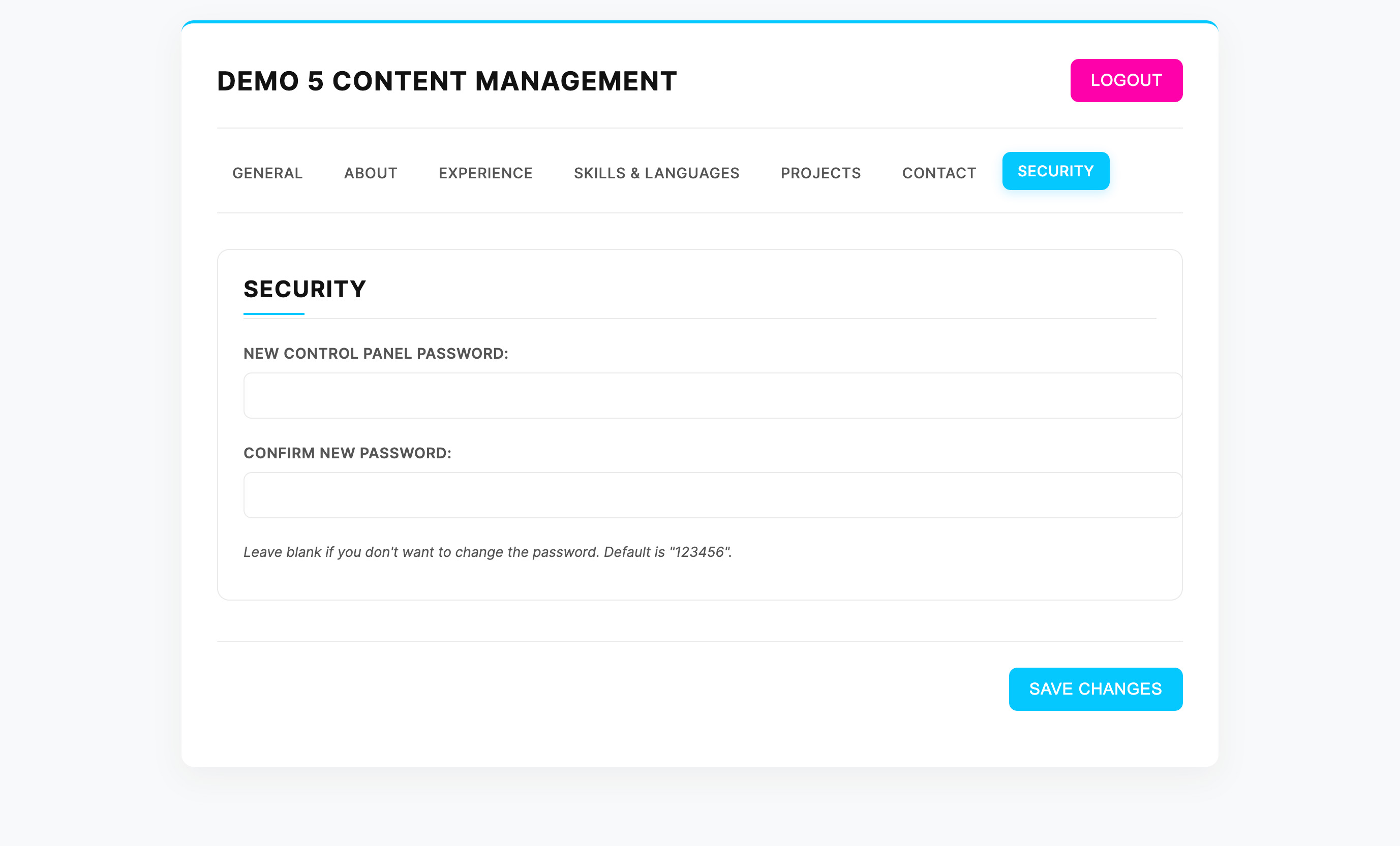
The Security section allows you to change your control panel password:
Changing Your Password
Enter your new password in both fields and click "Save Changes".
Password Requirements
For security, choose a strong password that's different from the default.
Save Your Changes
After changing your password, you'll need to download the updated data.json file and upload it to your server.
Important Security Note
If you forget your password, you'll need to manually edit the data.json file to reset it. Keep your password in a safe place.
Customization
While the control panel allows you to update content without coding, you can also customize the design and functionality by editing the source files directly.
CSS Customization
To customize the visual appearance of your portfolio, you can edit the CSS files:
assets/css/main.css       # Main stylesheet for layout and design
assets/css/theme-toggle.css # Styles for light/dark mode toggle
Here are some common CSS customizations:
/* Changing the primary color */
:root {
    --color-accent: #00c8ff; /* Change to your preferred color */
}

/* Adjusting font sizes */
.hero-title {
    font-size: 3.5rem; /* Adjust as needed */
}

/* Modifying spacing */
.section {
    padding: 6rem 0; /* Adjust top/bottom padding */
}
JavaScript Customization
To modify the functionality of your portfolio, you can edit the JavaScript files:
assets/js/main.js       # Main functionality and content loading
assets/js/animations.js # Animation effects and interactions
Here are some common JavaScript customizations:
// Adding a custom animation
document.addEventListener("DOMContentLoaded", () => {
    // Select the element to animate
    const element = document.querySelector('.your-element');

    // Create animation
    gsap.from(element, {
        opacity: 0,
        y: 30,
        duration: 0.8,
        ease: "power3.out"
    });
});
Images & Media
To customize images and media:
- Place your image files in the
assets/images/directory - Place your icon files in the
assets/icons/directory - Reference them in the control panel or directly in the HTML/CSS files
Image Optimization Tip
For better performance, optimize your images before uploading them. Use formats like WebP for better compression and faster loading times.
Frequently Asked Questions
How do I change the default password?
You can change the default password (123456) in the Security section of the control panel. Enter your new password, confirm it, and save your changes. Remember to download and upload the updated data.json file.
Can I use multiple demos on the same website?
Each demo is designed to be a standalone website. If you want to use multiple demos, you should upload them to different directories or subdomains. For example:
your-website.com/- Main demoyour-website.com/demo2/- Second demo
How do I add more projects to my portfolio?
In the control panel, navigate to the Projects section and click the "Add Project" button. Fill in the project details, including title, description, image path, link, and category. Save your changes and upload the updated data.json file.
How do I update my portfolio after making changes in the control panel?
After making changes in the control panel:
- Click "Save Changes" at the bottom of the form
- Download the updated data.json file
- Upload this file to your web server, replacing the existing data.json file
- Refresh your portfolio website to see the changes
Can I modify the design beyond what's available in the control panel?
Yes, you can customize the design by editing the CSS and HTML files directly. The main files to edit are:
index.html- Main HTML structureassets/css/main.css- Main stylesheetassets/css/theme-toggle.css- Light/dark mode styles
See the Customization section for more details.
Do I need a database or PHP for this portfolio?
No, Portfolio Pro is designed to work without a database or server-side scripting. All content is stored in a data.json file and loaded using JavaScript, making it perfect for static hosting environments like GitHub Pages or any basic web hosting service.
Troubleshooting
Content Not Updating
Problem:
You've made changes in the control panel, but they're not appearing on your website.
Solution:
- Ensure you've downloaded the updated data.json file
- Verify you've uploaded it to the correct location on your server
- Clear your browser cache or try a hard refresh (Ctrl+F5 or Cmd+Shift+R)
- Check your browser console for any JavaScript errors
Control Panel Login Issues
Problem:
You can't log in to the control panel or have forgotten your password.
Solution:
- Try the default password:
123456 - If you've changed it and forgotten, you'll need to edit the data.json file directly
- Open data.json, find the
"controlPanel": { "password": "your-password" }section - Change the password value back to
123456or your preferred password - Upload the modified data.json file to your server
Images Not Displaying
Problem:
Images are not displaying correctly on your portfolio.
Solution:
- Verify that you've uploaded the images to the correct location (assets/images/)
- Check that the file paths in data.json match the actual file names (case-sensitive)
- Ensure the image formats are supported (JPG, PNG, WebP, SVG)
- Check your browser console for 404 errors that might indicate missing files
Responsive Design Issues
Problem:
The portfolio doesn't look right on mobile devices or certain screen sizes.
Solution:
- Ensure you haven't modified the responsive CSS rules
- Check that you have the viewport meta tag in the HTML head
- Test on different devices and browsers
- If you've made custom CSS changes, review them for potential conflicts with the responsive design
Support
If you need additional help or have questions about Portfolio Pro, there are several ways to get support:
Support Hours
Our support team is available Monday through Friday, 9 AM to 5 PM (UTC). We typically respond to all inquiries within 24-48 business hours.
Rate & Review
If you're happy with Portfolio Pro, please consider leaving a rating and review on CodeCanyon. Your feedback helps us improve and supports future development.